Tap-to-Pay allows you to take payment directly from your compatible iPhone, or Android device.
MassageBook Pay users can enable Tap-to-Pay by following the steps below:
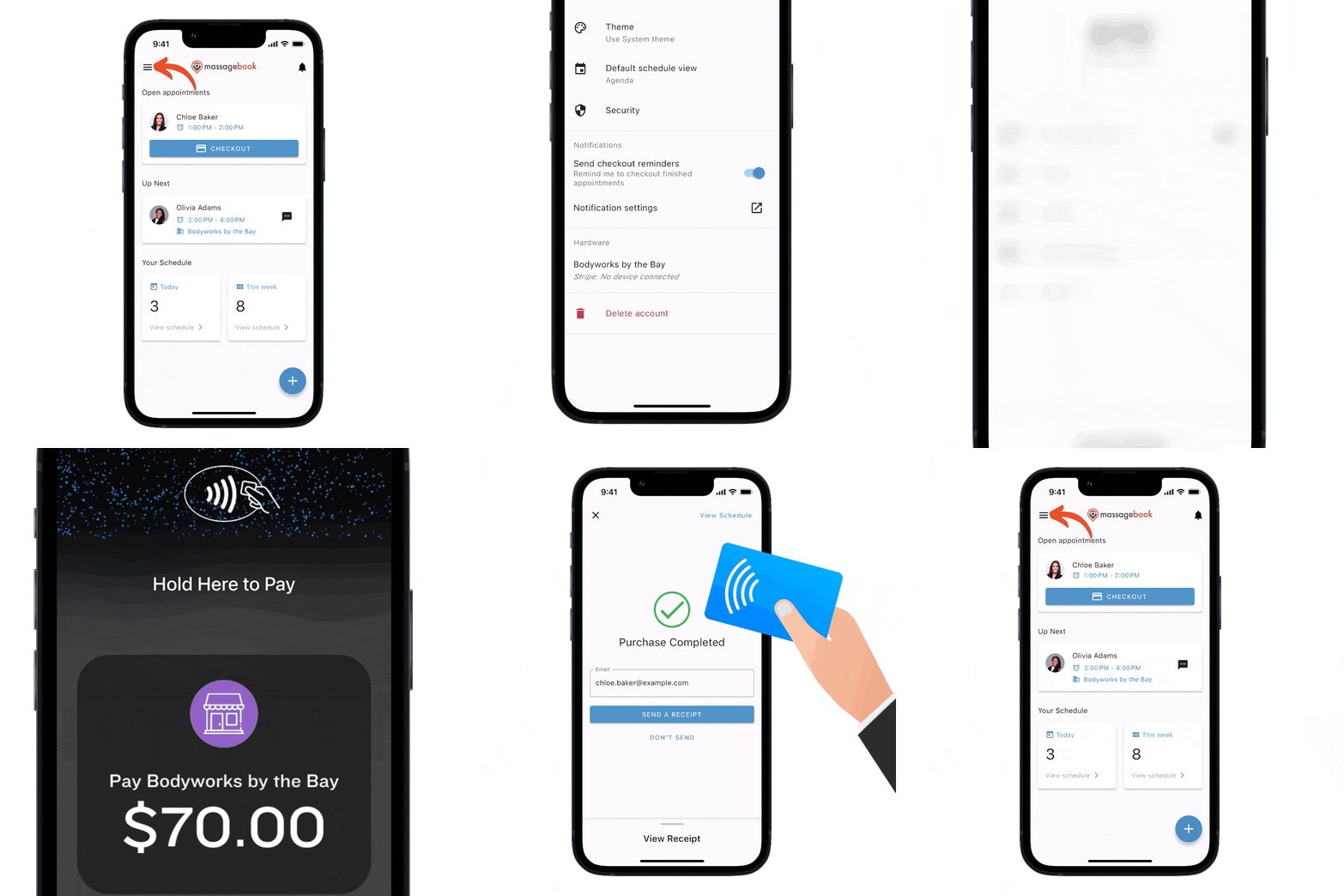
- Select the Menu in the top left corner of the app:
- Select App Settings.
- Select Checkout.
- If you have multiple locations you will need to select Adjust Checkout Settings on the location you wish to adjust.
- Under the Hardware section, select MassageBook Pay (the first option)
- Select Activate Tap to Pay.
- Enable location settings (if necessary)
If you receive an error message when enabling Tap to Pay for MassageBook Manager:
Check Stripe's list of devices that support their Tap to Pay functionality here: Devices Compatible with Stripe Tap to Pay.
Ensure that your device is not in Developer Mode.
After Tap-to-Pay has been enabled, you can then checkout and select "Pay with credit/debit" for the Tap-to-Pay screen to appear. Your client can then use their compatible phone, smart watch, or credit/debit card. No additional devices needed.
Notes:
- Tap to Pay is not supported in Puerto Rico, Stripe's M2 reader and S700 reader are supported devices in Puerto Rico.
- Tap to Pay is not available during a phone call. You will need to end the call on your device to complete the transaction.
- When a new version of the MassageBook Manager app is downloaded, the Tap to Pay setting may need to be re-enabled.
For Square users:
To use Tap to Pay in the MassageBook Manager app, you will first need to enable the Tap to Pay setting in your Square POS app. To do this:
- Open your Square point of sale app and tap ≡ More > Settings > Account.
- Select Tap to Pay on iPhone and toggle Tap to Pay on iPhone ON.
- Verify the correct Apple ID is shown. If not, select Use a Different Apple ID.
- Tap Agree & Continue to turn on Tap to Pay on iPhone.
Once enabled, you should see an option to Tap to Pay after selecting the option to "Swipe, Dip, or Tap" during checkout:
Notes:
- If you receive an error message when attempting to activate Tap to Pay, it may be helpful to ensure the Zip Code located in your Business Details is valid.
- Payment can be taken via Apple Pay through the Tap to Pay functionality.
- Tap to Pay is only available on mobile phones, tablets do not contain the hardware necessary for Near Field Communication.
- If Tap to Pay does not appear after enabling the setting in the Square app, try force closing the MassageBook Manager app and re-opening to ensure the new settings are applied.